Development
Webflow: a new website in no time
As websites grow ever more important, so does the need to build them faster and more affordably. We have mapped out the options, and our favourite.
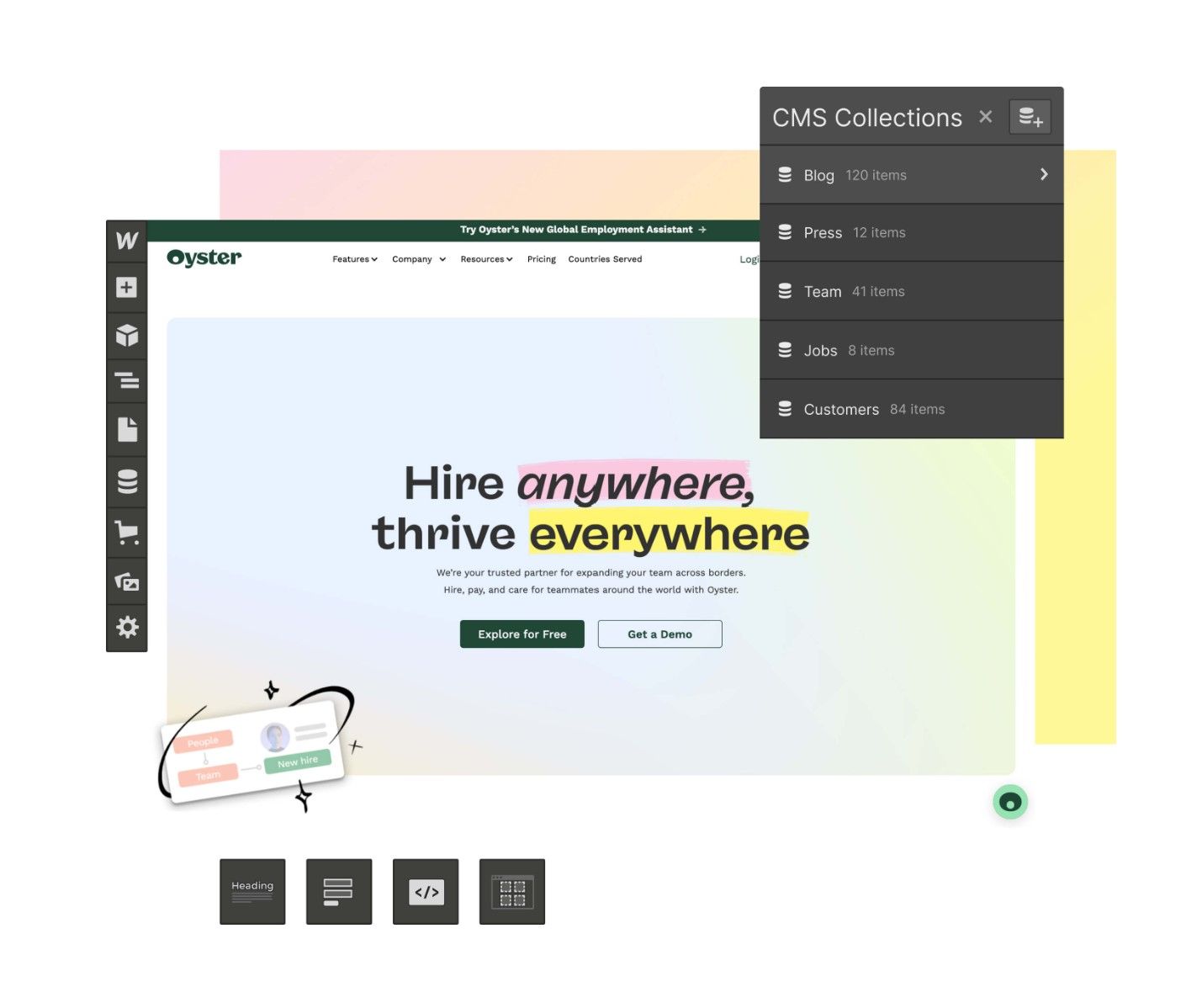
At a time when websites are becoming steadily more important for both companies and individuals, the need to build sites more cheaply and quickly has grown. Not everyone has the budget for a full development process to build a website, so different tools are needed if we are to keep delivering services to everyone.
Webflow is one of the tools you can use to do this, and we are now going to look more closely at it and at the possibilities it offers.
The different editors: their advantages and drawbacks
It should be said that every editor has its use cases. Wix, for example, is best for beginners. It is easier to find people who can work with WordPress than with Webflow. But we believe Webflow is definitely the tool here that gives the most flexibility and robustness. Let us take you through why.
WordPress
WordPress is probably the most popular editor and powers around 30% of websites. That does not necessarily mean it is the best.
The tool has a steep learning curve and feels considerably harder than Wix, for example.
It has a great many plugins, some 57,000 of them. You often have to install many of these to get the functionality you need, which means you can run into a fair number of challenges. Sometimes plugins crash, they can stop being compatible at any time, and they can be vulnerable to attack.
Themes and plugins often have to be updated, so you have to log in and check the dashboard frequently to make sure everything is current. And as we know, all developers can make mistakes, so updates can create problems. If you are not going to use one of the ready-made themes, you need someone who knows WordPress to build one.
WordPress is generally slower because of all the extra plugins, and because its code is not optimised and has a messy structure. This can lead to crashes, and that plus the slowness leads to poorer search engine rankings.
You also have to set up hosting yourself, unlike with the other editors.
Squarespace
With Squarespace you can build very good-looking websites. It has many ecommerce features, and the tool is also a little easier to learn. But it is fairly limited when it comes to editing. You cannot simply move an element wherever you want, and there is no drag-and-drop functionality. That makes it harder to change the position of elements, which can create a lot of mess and extra work.
Squarespace suits larger sites poorly since you cannot have a menu hierarchy.
It also takes far too many clicks to do what you want, and there is no autosave. That makes it somewhat inefficient.
Squarespace sites are also a little slow, which again hurts search engine ranking.
Wix
Wix is a good tool for beginners thanks to the drag-and-drop functionality; it is user-friendly and the service offers many features. But Wix will feel very limiting for professional designers or developers because of the lack of control.
When you build a website it should be responsive on every device, and that generally does not work optimally with Wix. It takes considerably more effort in Wix to make a site responsive across devices than it does in Webflow, for example. Several people also find that it loads slowly on mobile.
Webflow
Webflow, on the other hand, has a steep learning curve and is a notch more complex, but you get far higher flexibility and stability. We will look more closely at Webflow further down in this post.
What is Webflow?
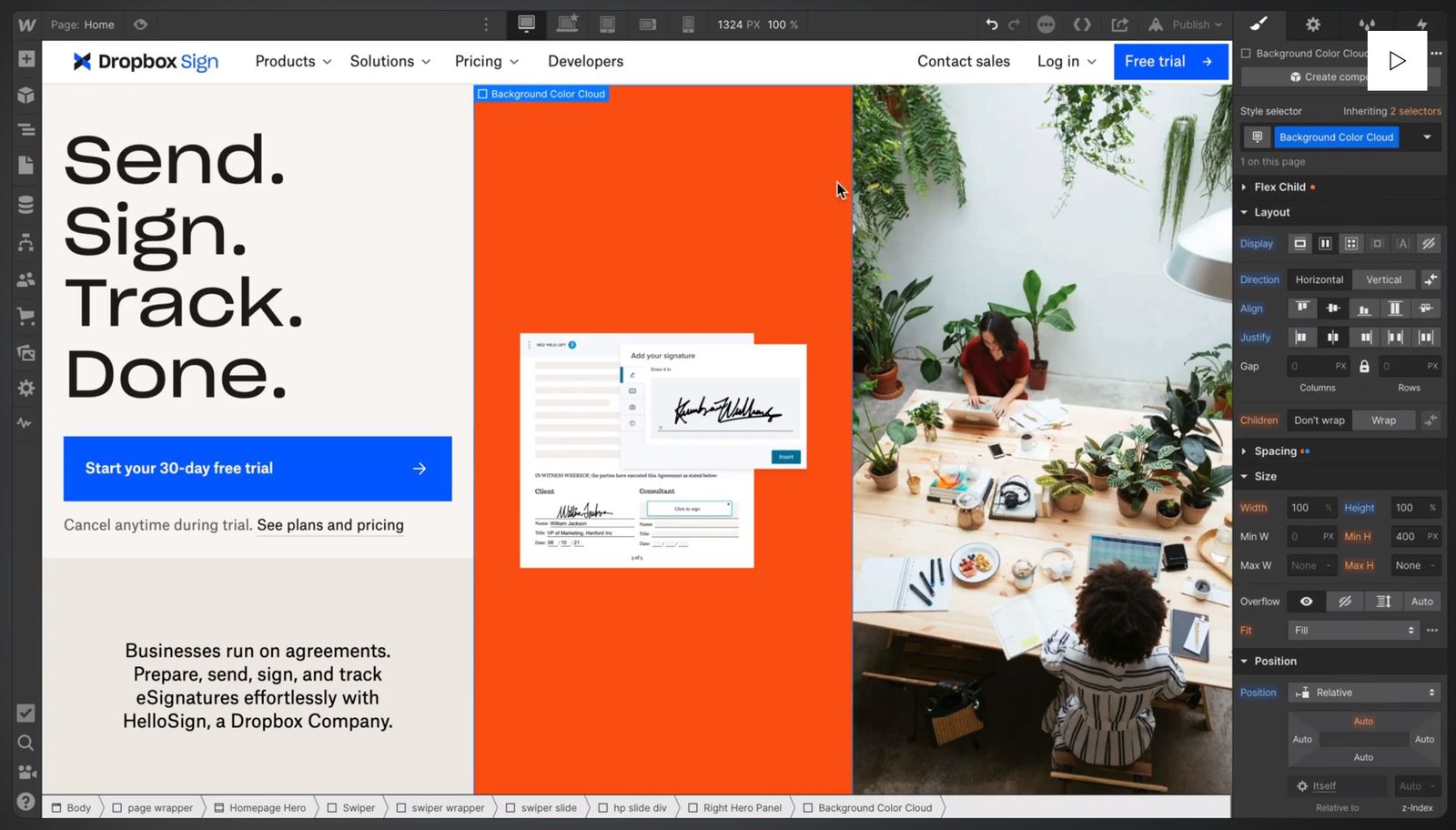
Webflow is a visual tool for building production-ready websites without really having to write code, using drag and drop instead. This works because Webflow uses industry-standard development principles. Its underlying technology is an abstraction of HTML, CSS and JavaScript, which means you can design and build sites visually while the platform generates the necessary code in the background. When you are finished you can publish the site or export the code. If you publish through Webflow they also handle hosting for you, delivered through AWS.
Webflow also offers a range of advanced features such as interactions, animations, dynamic content and ecommerce, which we will come back to later.
It is also important to know the limitations so you can choose the right solution for a project. If the project is fairly complex, or is meant to be part of an existing system such as an admin portal, a CRM system or other web systems, we would not necessarily recommend building it in Webflow.
Webflow says of itself: build with the power of code, without writing any. Being able to adapt the site with your own code can, however, be a big advantage. So let us look at the different ways you can do that.
- Embed elements. Here you can insert iFrame elements or other HTML, CSS or JavaScript code. This is useful if you want to integrate a third-party element such as a social media feed. You can also place embeds directly inside CMS objects.
- Custom code in the head and body tags. This is something we use quite a lot, and here IDs and classes on elements come in very handy. When you create elements in Webflow you can set a class and an ID on the element. The design you then apply to that element also defines the design of that class, so you can reuse the design by giving other elements the same class. You can also set several classes on one element. Say you set up a design for a piece of text. You want to use that text style in several places, but in some of them it should be centred. You can then create a combo class between the design of the element and another class called, say, center. You add that class where you want the text centred, and avoid having two almost identical classes. This is also one of the things that matters for SEO: we want to produce as little code as possible, so this is best practice. Both classes and IDs can be referenced from your code, which is what gives you good control.
- If you need code that should apply to the whole site, you can put it in the project settings. This is where you place code related to Google Analytics and cookies, for example.
It is worth noting, though, that no code is validated, so it is important to know what you are doing here.
Advanced functionality
Next we will look at the more advanced features available in Webflow.
CMS
Let us dive into the core of Webflow: the content management system, or CMS. This is where you handle all dynamic content.
You can create a complex, tailored database with different types of content, which in Webflow are called Collections. A Collection can contain something as simple as blog posts, or something more complicated, such as a set of products with different attributes like price, size, colour, category and ratings.
When you create a Collection, a template page is created for it as well. If you create a Collection called Blog, the template page defines how the data is presented when someone taps into a blog post.
When you design your pages you can drag and drop CMS elements straight into the design. That means you can design your pages around the actual content.
From a developer perspective you also have the option of using the CMS API to pull content from external data sources, connect to an existing CMS or set up custom webhooks.
Ecommerce
With Webflow Ecommerce you can build a complete online store without needing third-party plugins or additional services.
The first thing you notice with Webflow Ecommerce is that it follows the same principle as the rest of the platform: what you see is what you get. As you design your store you can see exactly how it will look to your customers in real time.
And as you would expect from Webflow, you have full control over the design of every single part of your online store. From product pages to the cart, the checkout and the receipt sent by email, you can adapt everything to fit your brand perfectly. That is a big advantage compared with many other ecommerce platforms, which often limit how much you can customise the design.
It supports the sale of both digital and physical goods. You can adapt how the product is delivered, whether it is shipped or sent by email. You can put download links in the email or on the order confirmation.
Webflow Ecommerce also supports different payment methods, including credit card, Apple Pay, Google Pay and PayPal through Stripe, and handles tax and shipping calculations automatically.
Keep track of orders through a dashboard. Here you can set order statuses and handle refunds. Customer accounts and order history are functionality coming soon to Webflow.
You can also integrate with third-party solutions if you want more functionality.
Interactions and animation
Creating an interaction or animation in Webflow is both fast and simple once you know the tool. You first choose which element you want to animate, then which type of interaction you want, such as scrolling or mouse movement. You can then adapt the animation by adjusting a range of parameters such as duration, delay, distance, rotation and scale. You can also chain several animations together to build more complex ones.
There is also a Timeline feature where you can fine-tune the timing and sequence of each part of your animation, just as you would in video editing software. This gives you a high degree of control over how your animations work.
Many animation presets are included that you can drop straight in.
Examples of animations you can build without coding:
- Parallax effects
- Tying movement to scroll progress. For example a progress bar based on how far down the page you have scrolled.
- Setting up other animations triggered by scrolling, such as how elements move on the page or when they appear.
- Building micro-interactions based on mouse movement.
- Animations that run in several steps, for example when the page loads.
- Changing components on hover
- You can also place Lottie files on the site. These can be tied to user interactions such as scrolling.
Memberships (beta)
It is worth noting that this feature is still in beta and may therefore have unexpected problems.
Webflow Memberships lets you build an online platform where users can register, log in and even pay for access to premium content. You can create and manage different user levels, from free membership to various tiers of paid subscription.
Memberships are relatively easy to set up. In the basic configuration you choose which pages or sections of your site are reserved for members and which are available to everyone. You can also set specific settings for different membership levels, such as which type of content they have access to and how much they pay for their subscriptions.
Another important part of this is the integration with the CMS and ecommerce. That means you can use the same powerful tools to manage your membership as you use to manage your content and products. For example, you can use the Webflow CMS to create a blog available only to paying members.
Logic (beta)
Again it is worth noting that this feature is in beta and may therefore have unexpected problems.
One of the newest additions to the feature list is Webflow Logic, which lets you add dynamic functionality without coding. It is like being able to add your own programming logic, but visually.
With Webflow Logic you can set up if-this-then-that rules (if/else) to control how elements on the site behave. For example, you can create a rule that says: if the user submits this form, save the answer in the CMS. This creates a shortcut to a lot of interactivity and personalisation.
Webflow Logic can be as simple or as complex as you need, from small automations to a complex flow. Logic lets you build no-code workflows using the core features of Webflow such as the CMS, forms, users and emails. At the same time you can create custom triggers and actions, and connect to third-party apps, with webhooks and HTTP requests for a more low-code approach.
SEO
Another important area to cover in today's digital market is the SEO tooling in Webflow. With these tools you can easily adapt and optimise your site for better rankings in search engines.
- Schema markup. Webflow lets you add and edit this, which makes content easier for search engines to understand and present.
- Meta titles and descriptions. You can set these to be defined automatically using fields in CMS collections. You can also set them directly on static elements on the page.
- Indexing and sitemap controls. You can easily edit and update page titles and descriptions.
- Handling of 301 redirects.
- Simple editing of alt tags for images
- Hosting via AWS. Fast loading is a positive factor for search engine ranking.
- Scalability: the Webflow servers scale and are ready to handle all the traffic you throw at them.
- Built-in SSL, so you do not have to handle it yourself.
- Clean, semantic code makes it easy for search engines and indexing bots to parse the site. This comes from the abstraction of HTML and CSS mentioned earlier.
Editor access
With editor access you can easily edit and add new content to the CMS directly on the page itself. That way you avoid having to deal with the CMS dashboard. This is good access to give to clients, so they can manage content easily without really having to learn the tool. They get a simpler version of Webflow where adding elements is just like filling in a form. It can then be edited visually on the site afterwards so it is easy to see how the result looks.
Figma to Webflow
This is a plugin you install in Figma that lets you export your design straight to Webflow. You set up the design and define how it should look at the different breakpoints. You can then copy the design directly into Webflow using the plugin. It brings text, colours and images across as well.
Examples of websites
- Company websites
- Online stores
- Portfolio sites
- Blogs
- News sites
- Learning and course sites with member access and subscriptions
- Event and conference sites
- Online communities with member access, premium content and subscriptions
- Restaurant sites
Summary
We have now looked at Webflow and the different features available through the tool. We hope this has given you a little more insight. We at Link Utvikling use Webflow as our preferred tool for many of our website projects. We have a lot of experience with it and are Webflow certified.
If you need help with a website in Webflow, or want to set up a new site, get in touch with us at Link Utvikling.